Goal → phases → steps
A goal keeps its purpose and summary. Phases group the work; steps describe actions, research, preparation or milestones, with estimated effort. A step can open an existing child breakdown or be broken down further.
GOALS → ACTIONS → TIME
Break a goal into concrete work, fit it into your available time, and begin with one action.
Open Goal ↗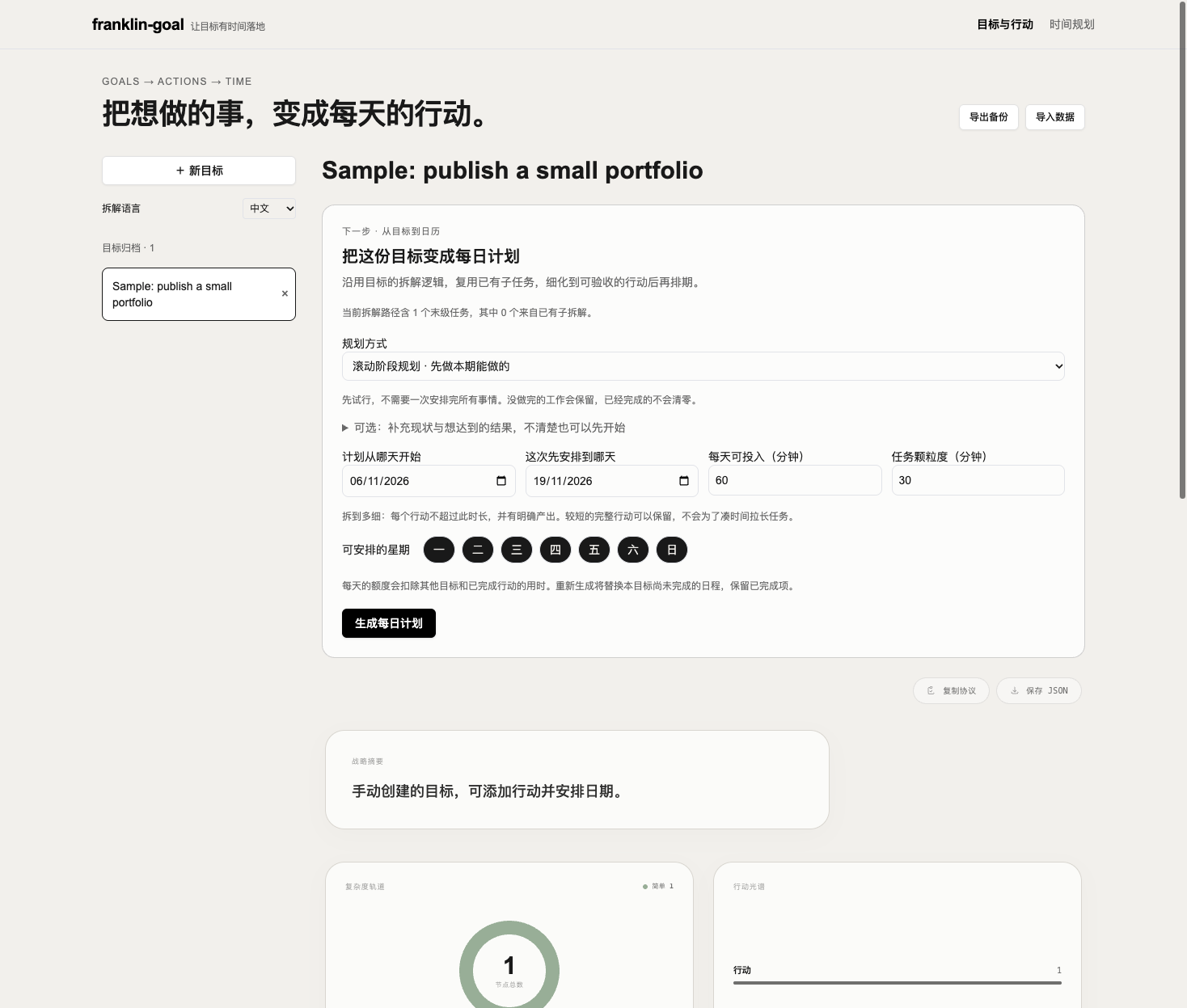
The workspace connects three different decisions: what you want, what work it requires, and when you can actually do it.
A goal keeps its purpose and summary. Phases group the work; steps describe actions, research, preparation or milestones, with estimated effort. A step can open an existing child breakdown or be broken down further.
Daily planning follows the existing breakdown, including linked child plans. Actions retain their source path, completion criterion and prerequisites, so a small task still points back to its original purpose.
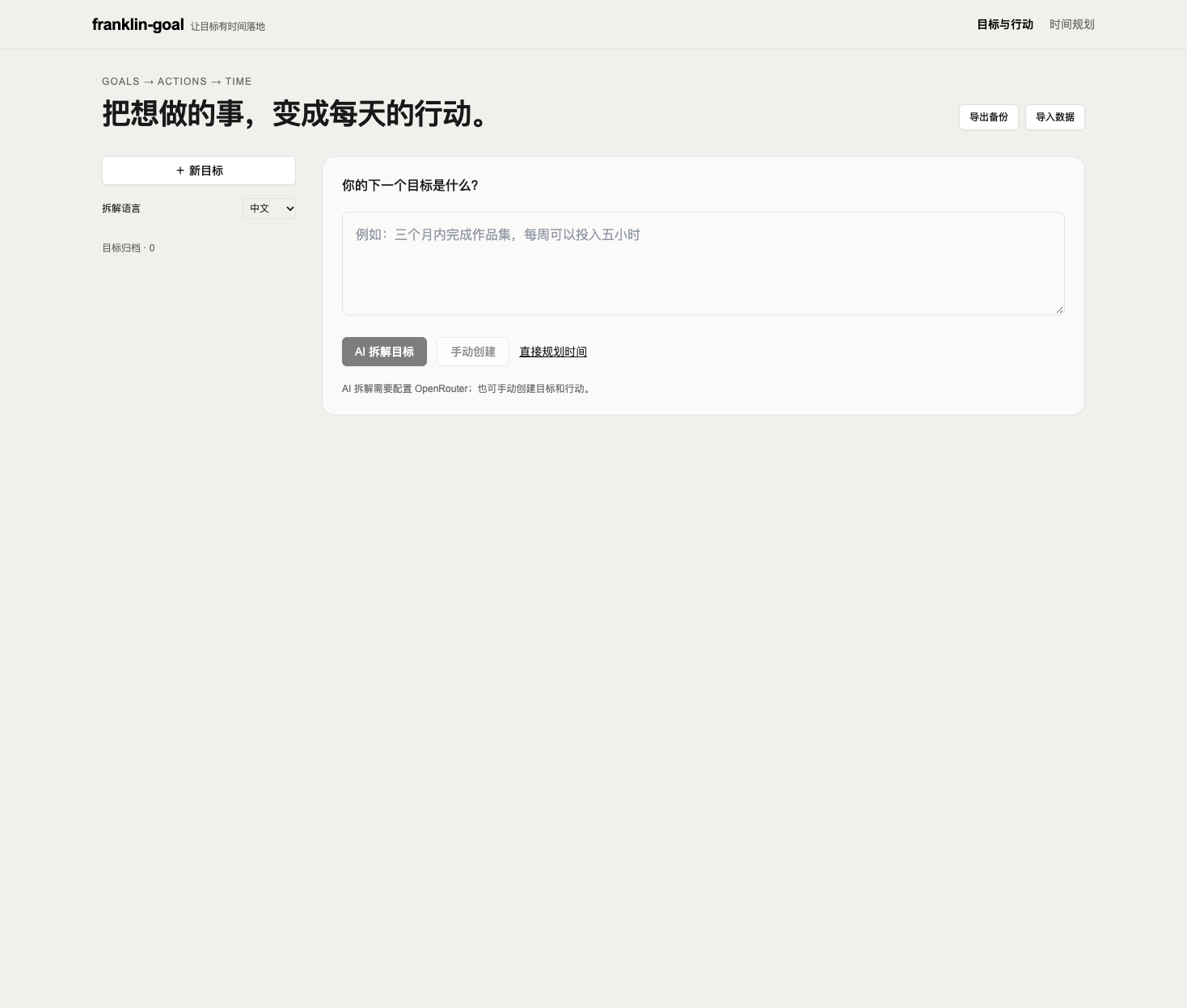
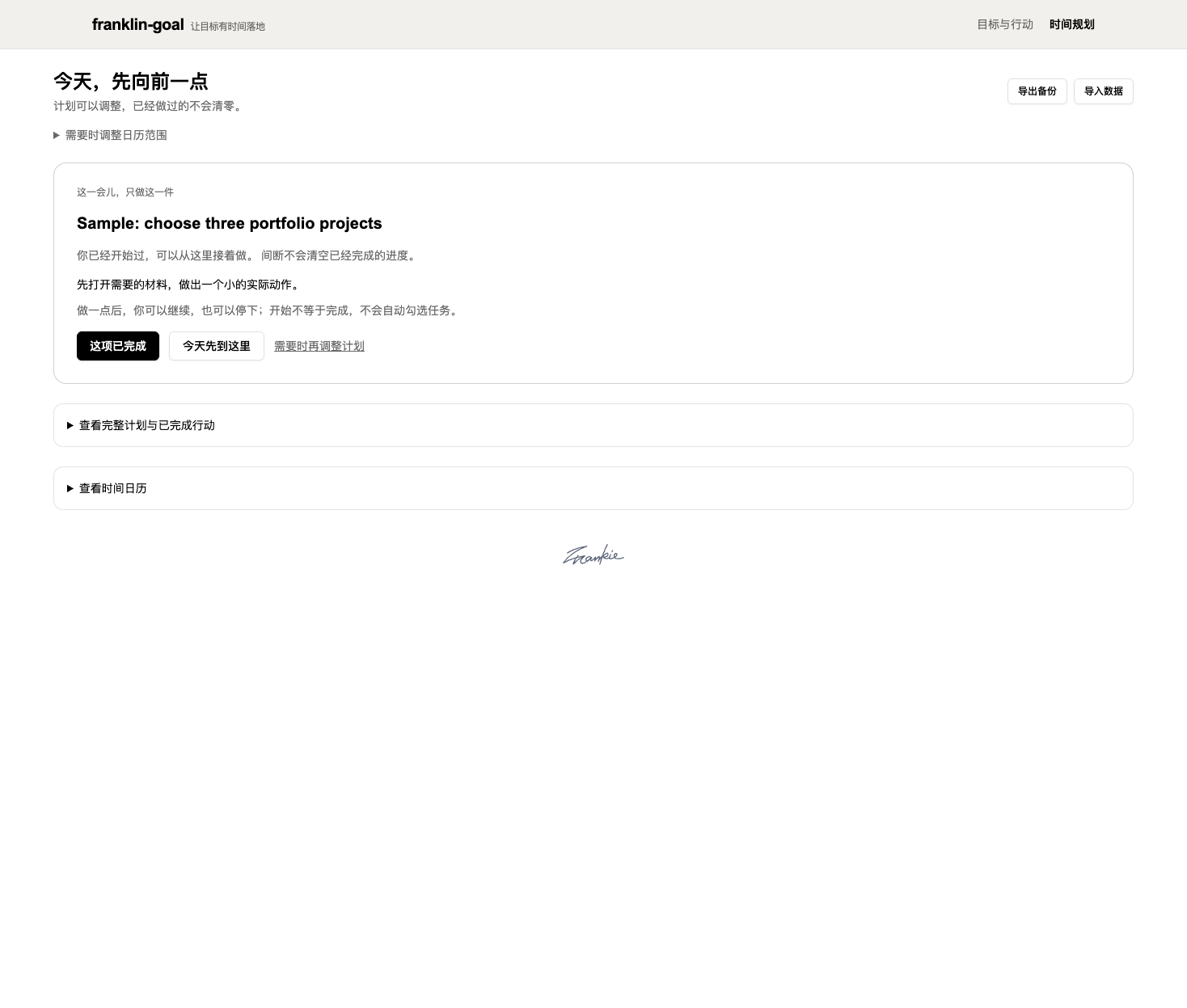
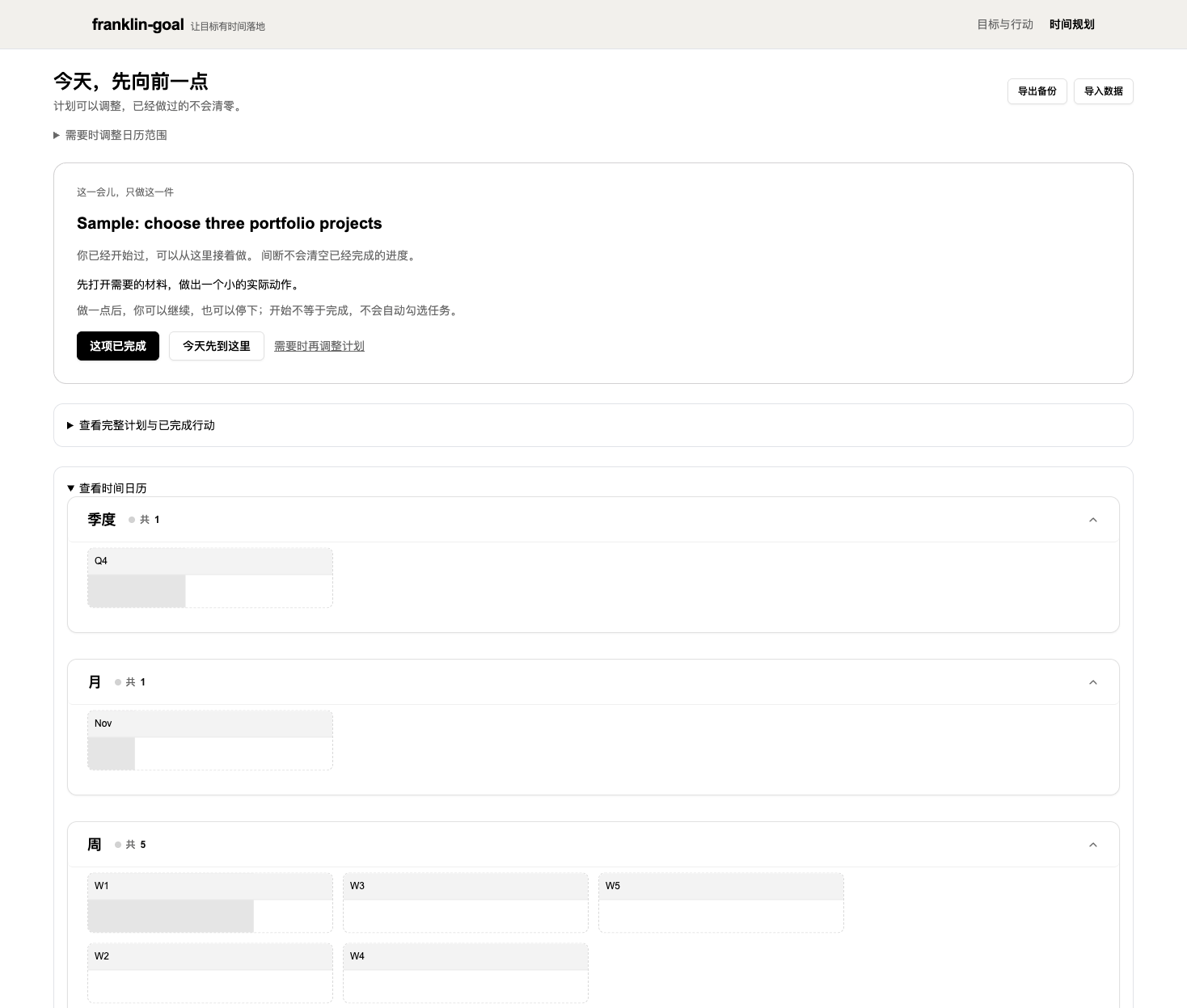
The time page surfaces one unfinished action whose date and prerequisites permit it. Previously started work takes priority. “Start with 5 minutes” records a start; it is not a countdown and does not mark the task complete.
Choose dates, weekdays, daily focused minutes and an action-size limit. You can add current circumstances and a definition of progress, but they are optional.
Arrange a feasible first stage. Work that does not fit stays in the goal with an explanation, alongside an expected outcome and a review date.
Try to fit the whole remaining scope into the chosen period. If the work or prerequisites cannot fit, the app reports the issue instead of quietly shortening the effort estimate.
AI proposes actions; the scheduler checks dates, capacity and prerequisite order. Existing commitments and completed actions consume daily capacity. Review and edit the preview before applying it. Applying a new plan replaces this goal’s unfinished schedule and preserves completed actions.
The manual route is fully usable: create a goal, add a step with an effort estimate, open “手动安排单个原始步骤”, choose a date, and add it to the schedule. You do not need to generate a whole plan first.
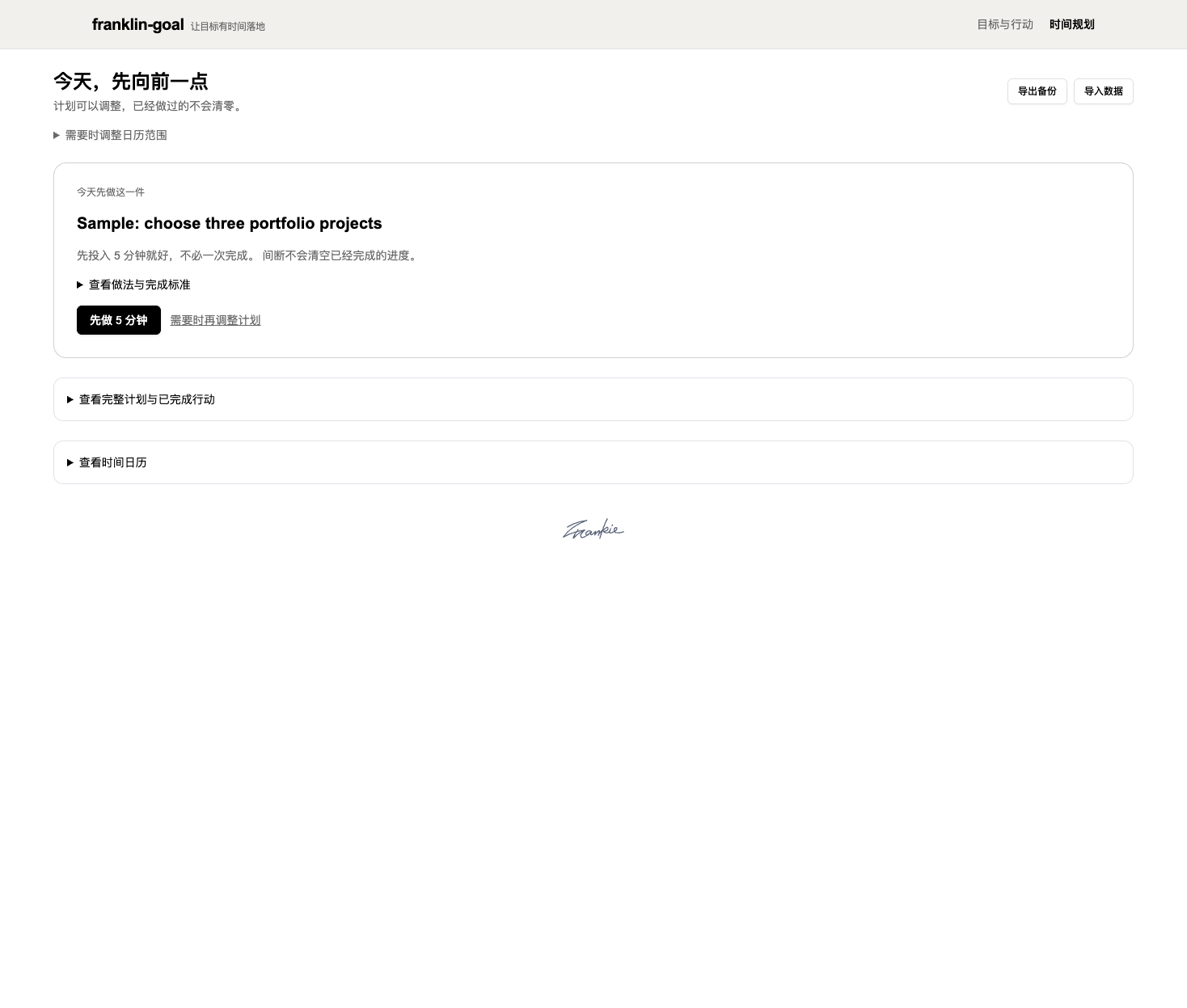
Describe an outcome and useful constraints. Choose manual creation, or use AI breakdown when the server has OpenRouter configured.
Read the phases and steps. For manual goals, add an action. For generated plans, review the scope and open smaller breakdowns where needed.
Schedule a step manually, or request a daily-plan preview with realistic availability. Applying the preview writes it to your local schedule.
Open Time planning. Start one eligible action, mark it complete when it is done, or stop and return later. Completed progress is not reset by a missed session.
Goals, schedules, time-block notes and preferences are saved in this browser. There is no account or cross-device sync. Another browser or app address has its own records; clearing browser data can remove them.
AI breakdown and daily planning call the app’s server, which sends goal/planning context to OpenRouter. The deployment owner configures a server-side key and compatible model. The app does not ask visitors to paste a key. Manual creation, scheduling and notes do not need an AI request.
Export a JSON backup before changing browsers or importing data. A full workspace backup replaces goals, schedules and planner notes; planner-only data replaces the planner; supported goal-only files add plans with conflicting IDs remapped. The import dialog confirms replacement. Files are limited to 10 MB.
Expand the time calendar to inspect quarter, month, week and day blocks. Edit a block’s notes, status or tags and see scheduled actions on the corresponding day. This is a local planning workspace, not a connected external calendar.
npm ci
npm run dev
Start the Next.js app after installing dependencies. Configure OPENROUTER_API_KEY and a compatible OPENROUTER_MODEL on the server only if you want AI features. AI estimates and expected outcomes still need your review; they are not evidence that work is complete.
Screenshot & content update guide ↗