Find the next symbol. Keep the whole board in view.
A Schulte grid scatters symbols across a board. Tap them in the required order, rather than reading rows. The default round uses 25 numbers in a 5 × 5 grid; your completion time and mistakes are recorded.
Change the task, not just the colors.
Choose 3 × 3 through 9 × 9 boards, digits or letters, forward, reverse or prompted random order. Try square, round, colored or Voronoi cells. Shuffle moves the symbols after a correct tap. Save a named mode to repeat the same rules later.
Black 1. Red 1. Black 2. Red 2.
The app’s Gorbov mode alternates black and red symbols, both ascending. The same number can appear twice: color is part of the target. This mode fixes the order and disables shuffle so the task stays consistent.
A minute of missing numbers.
Quick Math asks you to fill the missing operand or result. Easy uses addition and subtraction; Medium adds multiplication; Hard adds division and larger values. Correct answers add one point. A mistake lets you retry the same question while the 60-second clock continues.
The rules above describe this implementation. Progress reflects your performance on these tasks; no wider cognitive benefit is claimed.
See where the time went
Progress compares only rounds with matching settings. Review completion time, accuracy and individual answers. Schulte replay preserves each recorded board layout, including shuffled boards, and shows the captured finger trace. Pause, scrub or play at 0.5×, 1×, 2× or 4×.
Practice the slower parts
After completed Schulte rounds, Targeted mode ranks your slower symbols and cells using average intervals between correct taps. It places up to five of those symbols into slower cells. It is a local practice heuristic, not an attention diagnosis.
A round, from start to review
Choose Default, Gorbov or a saved mode. Customize the board or open Quick Math.
Start after the countdown. Follow the target; pause whenever needed. Backgrounding pauses the active round.
Finish the board or the 60-second math round. Completed results save automatically.
Open Progress, select matching settings, inspect a result and replay a Schulte round.
The native interface
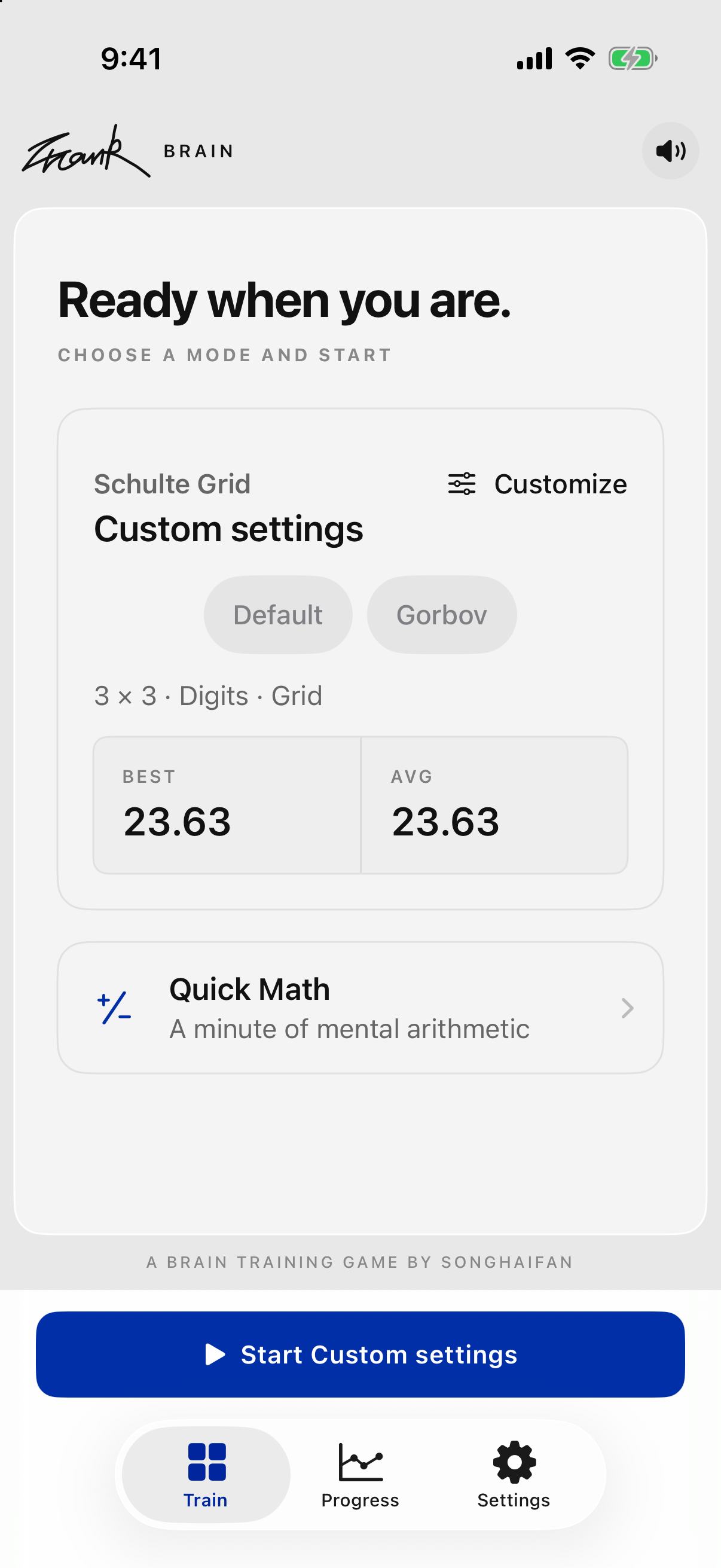
Real iPhone simulator capture. The web and iOS apps share a visual family, while the native version uses its own navigation and device storage.
Train: Schulte modes and a separate Quick Math entry, with native bottom navigation.
Build the native app
Requires Xcode and iOS 17 or later. Open FrankBrain.xcodeproj, choose the FrankBrain scheme and an iPhone or iPad simulator, then press ⌘R. For a physical device, select your development team in Signing & Capabilities.
Native iOS app. No browser deployment or App Store download is linked.
Completed sessions, presets and settings are stored in a local JSON archive. No account, server or CloudKit sync is implemented, and the web archive is separate. An active round pauses in the background; an unfinished round cannot be restored after the process ends. This is a practice game, not a validated measure or treatment of cognitive ability.